 66261231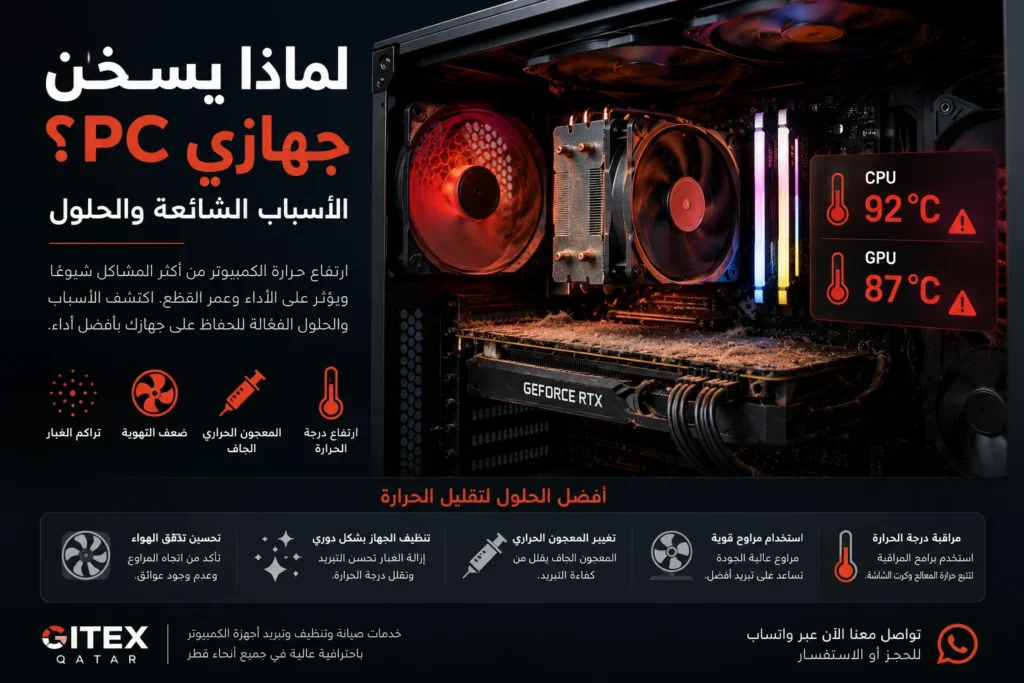
PC Overheating Causes and Solutions
Why Is My PC Overheating? Common Causes and Solutions
PC overheating is one of the most common problems gamers and heavy users experience, especially in hot environments like Qatar.
High temperatures can lead to:
- FPS drops
- Loud fan noise
- System crashes
- Random shutdowns
- Reduced hardware lifespan
Many users think their hardware is failing, but in reality, overheating is often caused by airflow problems, dust buildup, or poor cooling maintenance.
In this guide, we’ll explain the most common causes of PC overheating and how to fix them before they damage your hardware.
What Temperature Is Too High for a PC?
During gaming or heavy workloads, it’s normal for temperatures to rise.
However, if temperatures become excessively high for long periods, your system performance and hardware health can suffer.
Typical Safe Temperature Ranges
CPU
- Idle: 35–50°C
- Gaming/Heavy Load: 70–85°C
GPU
- Idle: 35–55°C
- Gaming: 70–85°C
Temperatures consistently above these ranges may indicate cooling issues.
Common Causes of PC Overheating
1. Dust Build-Up Inside the PC
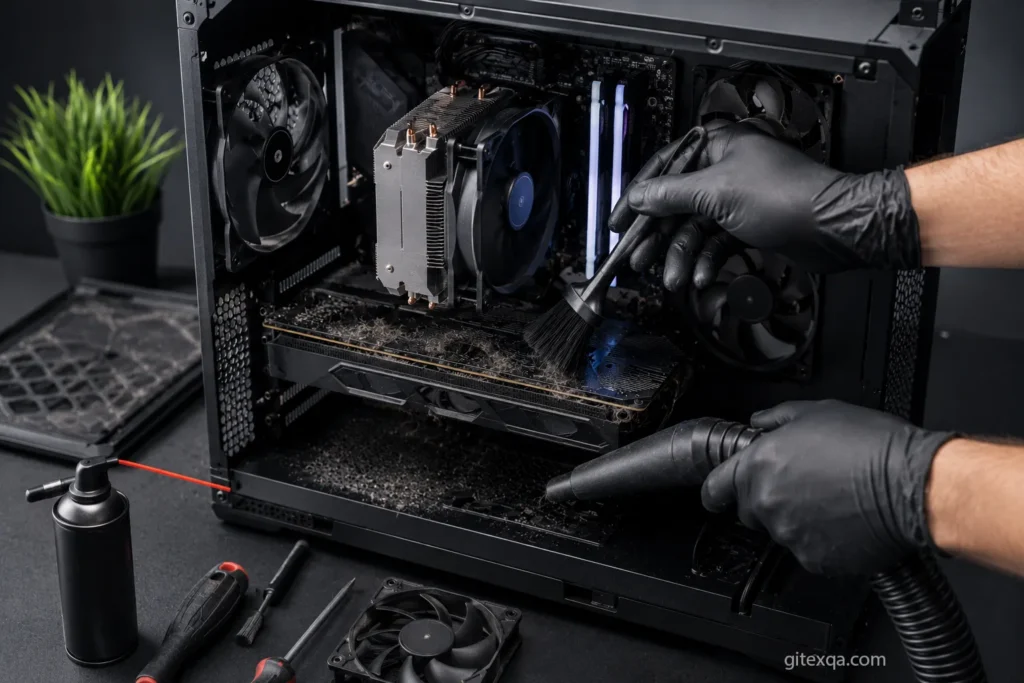
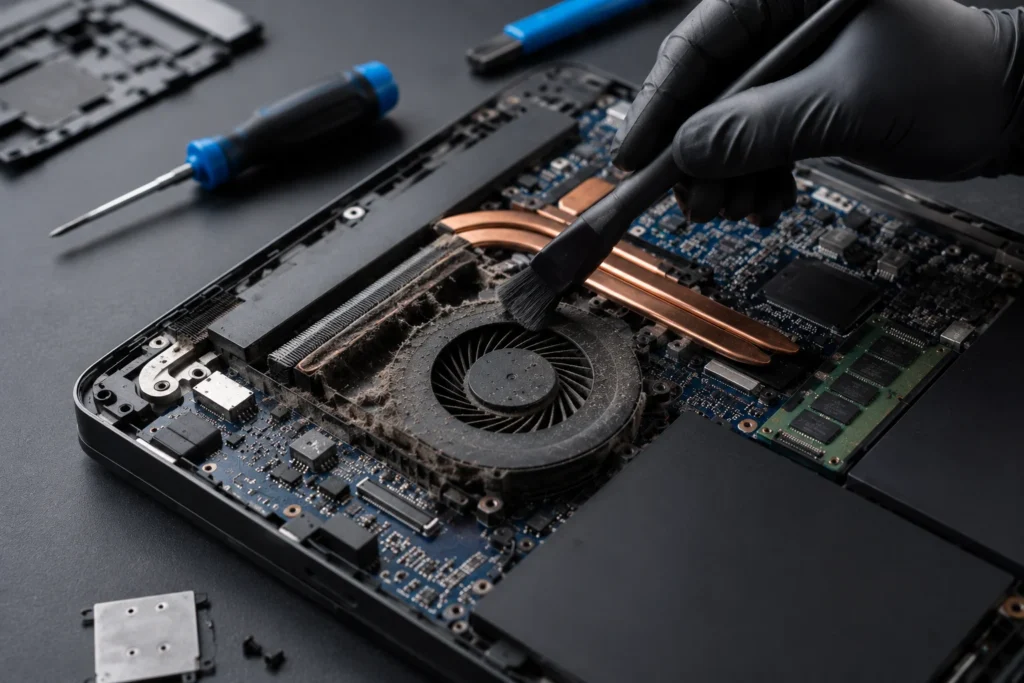
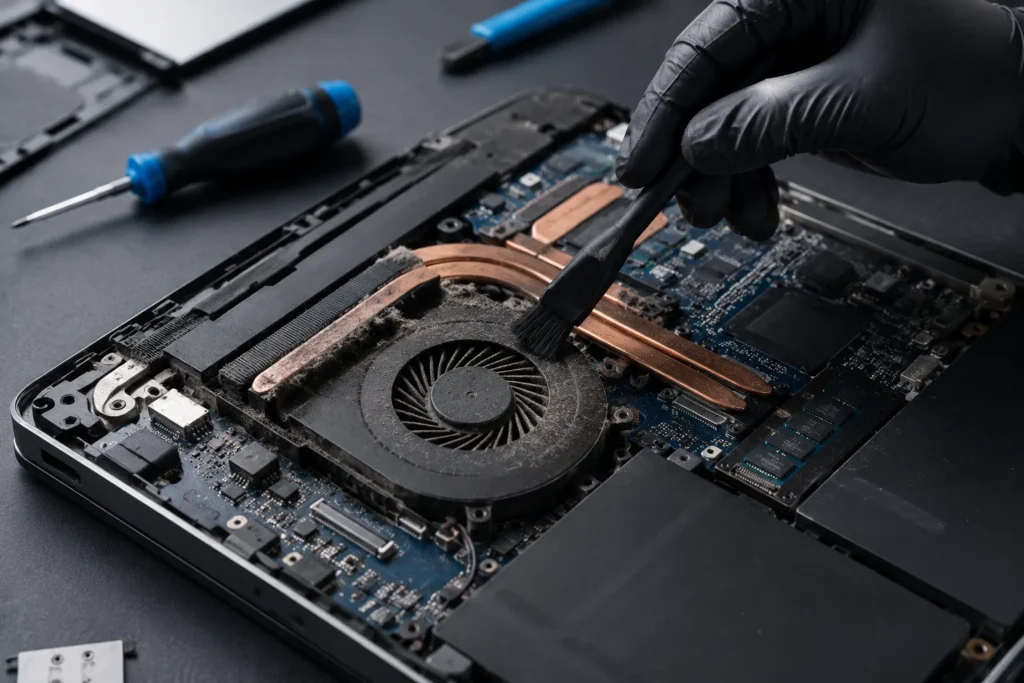
Dust is one of the biggest reasons gaming PCs overheat.
Over time, dust collects inside:
- Fans
- Radiators
- CPU coolers
- GPU heatsinks
- Air filters
This blocks airflow and traps hot air inside the case.
In Qatar, dust buildup happens faster due to environmental conditions and air conditioning usage.
Solution
Professional deep cleaning restores proper airflow and cooling performance.
2. Poor Airflow Inside the Case
Even powerful gaming PCs can overheat if airflow is poorly designed.
Common airflow problems include:
- Too few case fans
- Incorrect fan direction
- Cable clutter blocking airflow
- Small or restricted cases
Without proper airflow, hot air remains trapped around the CPU and GPU.
Solution
Optimize fan placement and improve internal airflow design.
3. Old or Dried Thermal Paste
Thermal paste transfers heat from the CPU or GPU to the cooling system.
Over time, it dries out and loses efficiency.
This leads to:
- Higher CPU temperatures
- Thermal throttling
- Reduced gaming performance
Solution
Replace the thermal paste with high-quality material.
4. Faulty or Weak Cooling Fans
Cooling fans wear out over time.
A failing fan may:
- Spin slowly
- Stop randomly
- Make loud noises
- Lose cooling efficiency
If airflow becomes weak, temperatures rise quickly during gaming.
Solution
Inspect and replace damaged fans if necessary.
5. High Ambient Room Temperature
Room temperature directly affects PC cooling.
In hot environments, cooling systems work harder to maintain safe temperatures.
Poor ventilation or placing the PC in enclosed spaces can worsen the issue.
Solution
Keep the PC in a well-ventilated room and avoid blocking air intake areas.
6. Overclocking Without Proper Cooling
Overclocking increases CPU and GPU performance, but also increases heat output significantly.
Without adequate cooling, temperatures can become dangerous.
Solution
Use proper cooling systems and monitor temperatures carefully.
Signs Your PC Is Overheating
Common warning signs include:
- FPS drops
- Loud fan noise
- System freezing
- Blue screens
- Sudden shutdowns
- Hot case surfaces
- Performance loss during gaming
If ignored, overheating may eventually damage expensive components.
How Overheating Affects Gaming Performance
Modern CPUs and GPUs automatically reduce speed when temperatures become too high.
This process is called thermal throttling.
Thermal throttling can cause:
- Lower FPS
- Stuttering
- Input lag
- Unstable gameplay
Keeping temperatures low helps maintain stable gaming performance.
How to Reduce PC Temperatures
Improve Airflow
- Install proper intake and exhaust fans
- Organize cables
- Use a high-airflow case
Clean Dust Regularly
Regular cleaning prevents airflow blockage and overheating.
Replace Thermal Paste
Replacing old thermal paste can dramatically improve temperatures.
Upgrade Cooling Systems
For gaming PCs, stronger cooling solutions may help:
- Larger air coolers
- Liquid cooling systems
- Better case fans
Monitor Temperatures
Use monitoring software to track CPU and GPU temperatures during gaming.
Professional PC Cooling Services in Qatar
At Gitex Qatar, we provide:
- Deep PC cleaning
- Thermal paste replacement
- Cooling system upgrades
- Fan replacement
- Airflow optimization
- Gaming PC diagnostics
- GPU and CPU overheating repair
With fast support and professional service across Qatar.
Frequently Asked Questions
Is PC overheating dangerous?
Yes. Long-term overheating can damage hardware and reduce component lifespan.
Does cleaning improve temperatures?
Absolutely. Dust removal restores airflow and improves cooling performance.
Is liquid cooling better than air cooling?
Both can work well. High-performance systems often benefit from liquid cooling.
How often should I clean my gaming PC?
Every 3–6 months is recommended in Qatar due to dust and climate conditions.
Contact Us
If your gaming PC is overheating or losing performance, contact Gitex Qatar for professional diagnostics, cooling upgrades, and deep cleaning services in Qatar.
Visit our website:
Gitex Qatar